

Many new users of Telegram don't know how to set it up to join adult groups. After searching for a group, they are blocked by a prompt like the one shown below.

Steps to remove the restriction:
Method 1: Open the Desktop computer client. Click the three horizontal lines in the top left corner: Settings → Privacy and Security → Enable "Sensitive Content" → Disable Filtering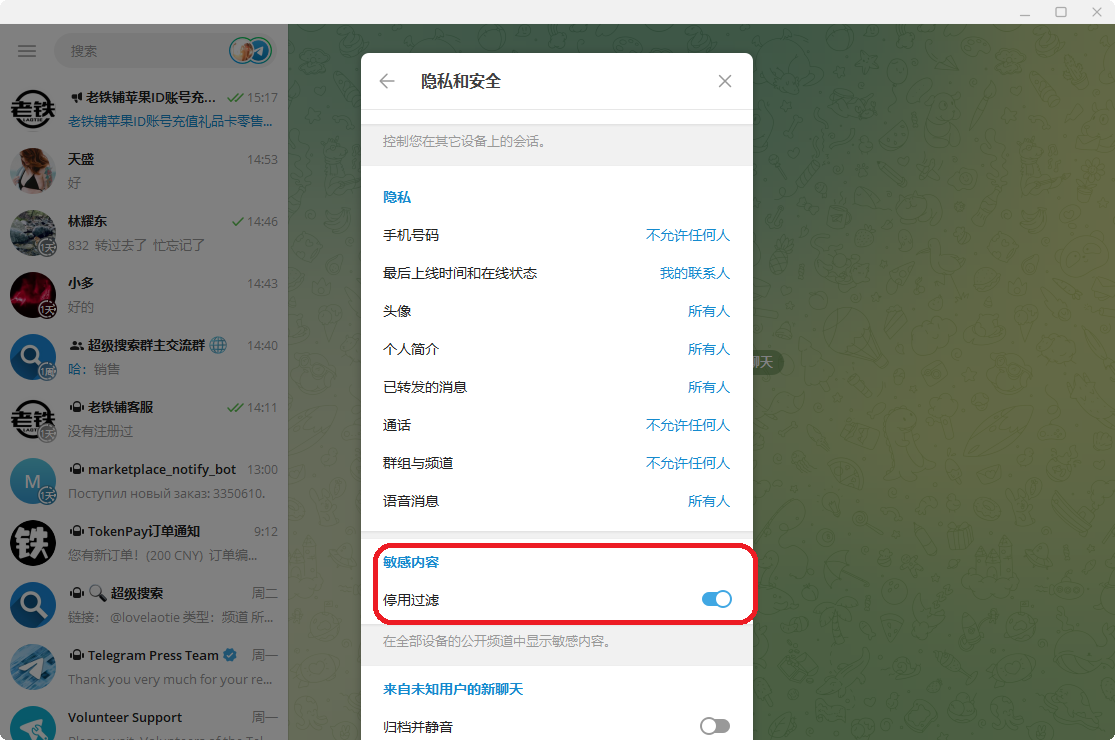
Method 2: Open the macOS desktop client: Settings → Privacy and Security → Enable "Display media containing sensitive content"
Method 3: New Web Version:
Access the official web version address via a browser on your phone or computer: https://web.telegram.org/ link. Enter your phone number to log in (the verification code is sent first to your previously logged-in Telegram device/client/App).
On the main interface → three horizontal lines in the top left corner → Settings → Click "Privacy and Security" → Scroll to the bottom, and enable "Disable filtering".
Note: You must open it in a browser. The verification code is sent first to your previously logged-in Telegram device/client/App. If you open the link directly in Telegram, you won't be able to see the verification code on Telegram.
Restart the Telegram iOS client, or wait a few minutes and restart again, or log in again.
Notes:
1. Numbers from Indonesia (+62) cannot remove this restriction; this option is not available.
2. This is not a mobile client setting; do not look for it in the mobile client settings.
3. Computers running Windows, macOS, or Linux can all use the Telegram Desktop version client.
It is strongly recommended to use a computer for this operation; doing it on a phone is tiring to look at.









 1
1