

Two Ways to Log into Apple ID and Their Differences
On Apple devices such as iPhone and iPad, there are two common ways to log into an Apple ID:
-
Logging into Apple ID from System Settings
-
Go to the "Settings" app → Tap "Sign in to your iPhone" at the top → Enter your Apple ID and password → Complete iCloud sync and device binding.
-
This method directly binds the Apple ID to the device's iCloud services, including the "Find My iPhone" feature.
-
Once bound, the device is protected by Apple's Activation Lock. Even if the device is factory reset, the Apple ID and password are required to activate and use it.
-
-
Logging into Apple ID from the App Store
-
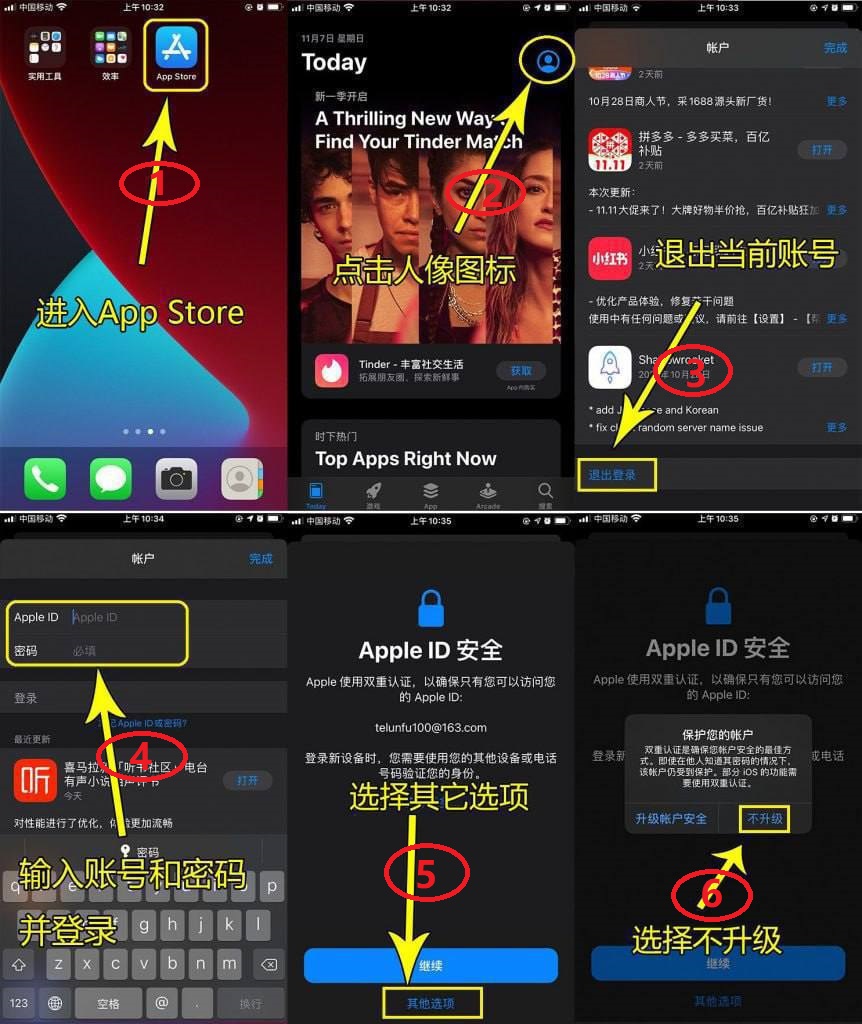
Open the App Store → Tap the profile icon in the top right corner → Sign in with your Apple ID → Used only for downloading or updating apps.
-
This method does not automatically enable iCloud or Find My iPhone, nor does it bind the Apple ID to the device's hardware.
-
Even if you sign out or reset the device, Activation Lock will not be triggered.
-
Key Difference: iCloud Binding and Activation Lock
To understand the fundamental difference, we need to start with iCloud Activation Lock.
-
What Activation Lock does
Activation Lock is an anti-theft feature introduced by Apple after iOS 7. Once "Find My iPhone" is enabled, the device is permanently bound to the currently logged-in Apple ID. After a factory reset, the original Apple ID and password are required to activate the device.
This is a powerful deterrent against the reuse of stolen devices, but in certain scenarios, it can also become a "lock trap." -
Logging in via Settings = Activation Lock automatically enabled
Logging into an Apple ID through "Settings" essentially binds the account fully to the device, and "Find My iPhone" is enabled by default. Even if you don't manually turn it on, you may be prompted to do so. Consequently, if you forget your password, your Apple ID is banned, or the account you are using is compromised, your device can become bricked (unable to activate). -
Logging in via App Store = App downloads only
An Apple ID logged in from the App Store only involves App Store and iTunes Store authorization. It does not enable iCloud, bind to the device hardware, or trigger Activation Lock. After signing out, the device can still be reset and used at any time.
Why Logging in via App Store is Recommended (Anti-Lock Strategy)
In many scenarios involving second-hand devices, app downloading services, or temporary accounts, logging into an Apple ID from the App Store is safer. Here's why:
-
Avoids iCloud binding and reduces the risk of bricking
-
If you are using an Apple ID that is not your own (e.g., a shared account you purchased, or an account borrowed from a friend), logging in via "Settings" essentially hands over control of your device to the original account owner.
-
If they change the password or enable Lost Mode, your device will immediately become locked with Activation Lock and become unusable.
-
However, logging in via the App Store only authorizes app downloads. Even if the account owner changes the password, it will not affect your normal use of the device.
-
-
Easier account switching and avoids frequent iCloud sync conflicts
-
After logging in via Settings, iCloud syncs personal data such as contacts, photos, and notes.
-
If you are using someone else's account, this means your private data could be visible to them, posing a privacy risk.
-
Logging in via the App Store does not touch your iCloud data, and signing out does not affect local content on the device.
-
-
Prevents accidentally enabling "Find My iPhone"
-
After logging in via Settings, the system prompts you to enable "Find My iPhone." Many users might accidentally turn it on, thereby triggering the risk of Activation Lock.
-
Logging in via the App Store does not involve this feature at all, so it cannot be accidentally enabled.
-
-
Suitable for short-term use of Apple IDs
-
For example, shared IDs used temporarily to download paid apps, or region-specific IDs (e.g., US or Japan store for specific software), it is not recommended to log in via Settings.
-
Simply log in via the App Store, download the apps you need, and then sign out. It's safe and quick.
-
Correct Anti-Lock Apple ID Login Method (Recommended Steps)
If you only want to use an Apple ID to download apps, follow these steps:
-
Open the App Store app
-
Tap the profile icon or the "Sign in" button in the top right corner
-
Enter the Apple ID and password you want to use
-
Download the desired apps
-
After downloading, it is recommended to sign out immediately (to avoid issues updating apps if you need to switch accounts later)
Note: Signing out of the Apple ID in the App Store does not affect your iCloud usage. You can still use your own Apple ID to log into iCloud and keep your data synced.
Summary Comparison
| Login Method | Binds iCloud | Enables Activation Lock | Download Apps | Data Sync | Risk Level |
|---|---|---|---|---|---|
| Settings Login | Yes | Yes | Yes | Yes | High |
| App Store Login | No | No | Yes | No | Low |
-
If it's your own device + your own Apple ID, logging in via Settings is more convenient and allows you to enjoy the full range of iCloud services.
-
If it's a second-hand device, temporary account, or shared account, it is strongly recommended to only log in via the App Store to avoid binding iCloud and Activation Lock.









 1
1