

This article specifically explains how to enable the SMTP protocol for Google Gmail. Before reading this article, I need you to confirm 3 things:
1. You already have a Google account
2. You clearly understand why you want to enable SMTP service
3. You already have the basic knowledge and are able to bypass the firewall
Google Gmail enabling SMTP/IMAP service process
If you cannot "bypass the firewall", you can skip the rest of the content.
First, you need to understand a concept: a Google account is a Google account. Your Google account is not necessarily registered with a Gmail address; it could be registered with a QQ email or any other domestic email. To enable Google Gmail, you must ensure you already have a Gmail address.
It's actually quite easy to understand. If you're not entirely clear, read what I said above a few more times, and you'll gradually get it. The registration address for Google Gmail is here: Gmail Registration
Regarding which port to use for Gmail and what the SMTP address is, I will explain it clearly step by step below. Keep reading.
Enable IMAP
Google Gmail login address: https://mail.google.com (Yes, it's the same as the registration address)
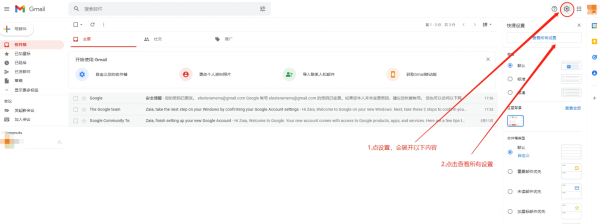
Next, log in to your email account, then click the gear icon in the top right corner — See all settings
Google Gmail enabling SMTP/IMAP service process
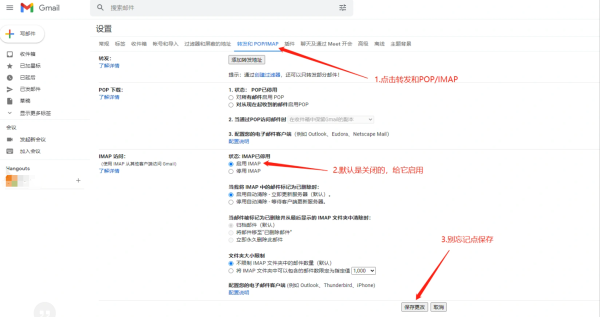
Then find the option at the top: Forwarding and POP/IMAP and click on it. Initially, IMAP is disabled for any email account. Here, select Enable IMAP and finally click Save Changes.
Google Gmail enabling SMTP/IMAP service process
Back to the main topic. We have already enabled the IMAP service for Google Gmail above. Google's email mechanism is that once IMAP is enabled, SMTP is automatically enabled. It doesn't matter if you don't see it in the settings; you don't need to worry about it.
Obtain a Google App Password:
After enabling the IMAP service, you also need to obtain an app password from Google to use it. At this point, visit the Google Account page: https://myaccount.google.com/ In the menu on the left, select Security
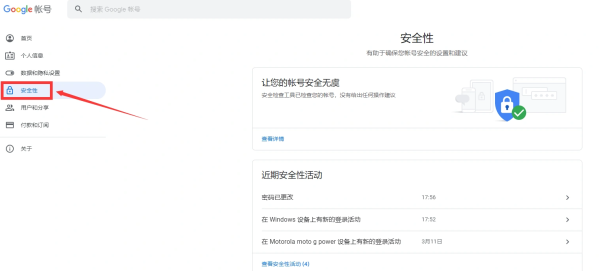
Note! To obtain an app-specific password, you must enable two-step verification. Otherwise, the option for app passwords will not appear.
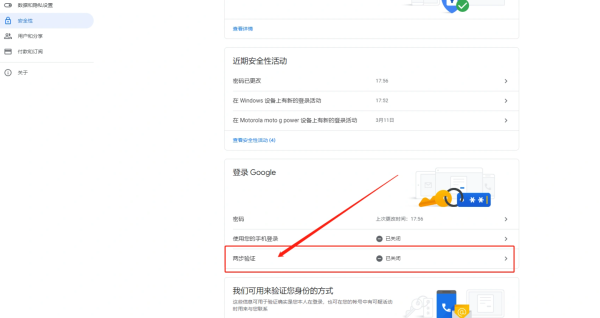
Follow Google's requirements to enable two-step verification. During the process, you will need to bind a phone number. Here is the interface after enabling it:
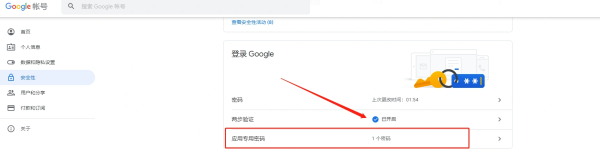
You can see that after enabling it, the App passwords function appears. You need to generate a new password here. I have already created one. The creation process is simple; just select the device that suits you.
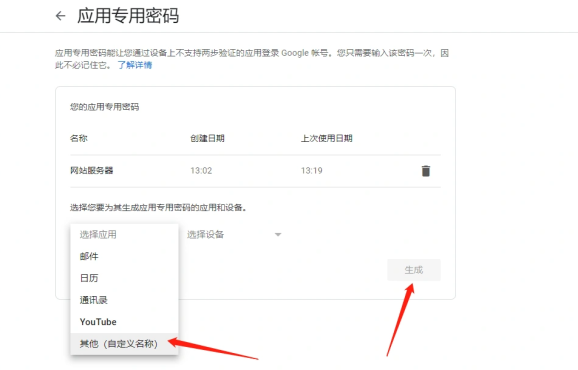
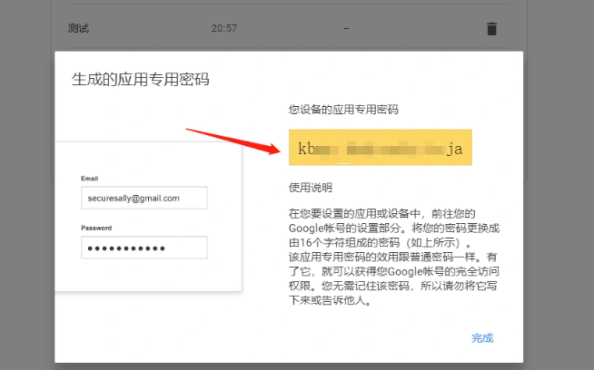
After generation, you will get a unique password. Copy and save it. If you forget it, you will have to delete it and regenerate it.
Protocol Port Description:
Below are the corresponding ports for Google Gmail and the SMTP server address we need. Refer to the table below:
| Description | Details |
|---|---|
| Incoming Mail (IMAP) Server | imap.gmail.comRequires SSL: YesPort: 993 |
| Outgoing Mail (SMTP) Server | smtp.gmail.comRequires SSL: YesRequires TLS: Yes (if applicable)Requires Authentication: YesSSL Port: 465TLS/STARTTLS Port: 587 |
| Full Name or Display Name | Your Name |
| Account Name, Username, or Email Address | Your full email address |
| Password | Your Gmail password |
I have sorted out the important information for you.
When configuring a standalone or third-party email client, we generally only need the SMTP sending information: smtp.gmail.com. Knowing it uses SSL encryption, the port cannot be 25, but rather 465. Finally, the SMTP password is the app-specific password generated earlier.







 1
1